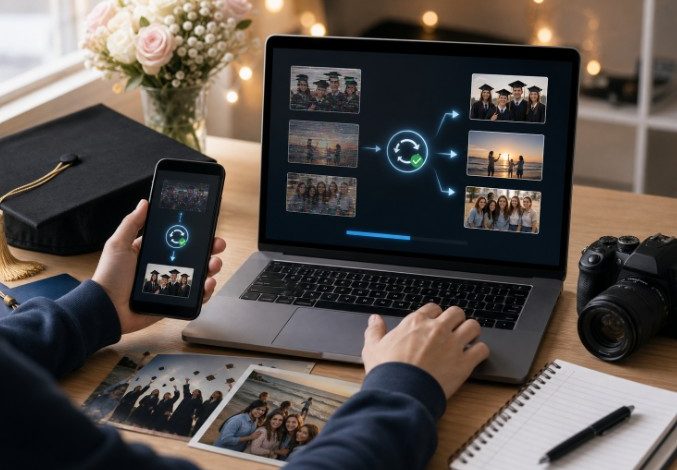
Graduation week creates two kinds of pressure at once: emotional pressure to keep the memories and practical pressure to organize everything quickly. Photos may turn blurry, previews may fail, and videos may stop playing right before students want to post, print, or archive them. A careful photo repair tool workflow helps when important images no longer open correctly, and Repairit Online is also available for quick browser-based photo fixes when time is short.
Why Graduation Photos and Videos Get Damaged
Graduation media often moves across too many devices in too little time. A student may shoot on a phone, transfer to a laptop, back up to a cloud folder, send copies to friends, and then run edits for social posts or family sharing. Every move increases the chance of incomplete transfers, storage conflicts, or accidental compression.
Phone transfer errors are especially common. A video may appear to finish copying while the process is still unstable in the background. The result can be a file that exists but no longer previews normally. SD cards introduce a second layer of risk when they are removed too early or filled close to capacity during the ceremony.
Editing and export failures cause another group of problems. A short graduation reel may look fine in the timeline, then export with playback errors or broken frames. A favorite portrait may lose quality after repeated edits, filters, or re-saves. These are not rare cases. They are normal outcomes of rushed media handling during busy events.
Graduation Photo Repair and Video Repair Work Best as Different Recovery Paths
Photos and videos may be collected in the same memory folder, but they usually need different recovery logic. Image files often fail through blur, corruption, broken previews, or unreadable damage. Video files fail more often through playback errors, black screens, missing sound, or broken structure after transfer. Treating both problems as if they were identical usually wastes time.
For damaged clips that refuse to play, a separate video repair software workflow makes more sense than forcing everything through an image-based fix. That is particularly relevant for graduation highlights, family compilation videos, and short edited reels that need to stay smooth enough for sharing.
The practical lesson is to sort the media first. Ask which files are static images, which are playable video assets, and which ones are urgent enough to repair immediately. That simple sorting step makes the rest of the recovery process less chaotic.
How Repairit Fits Graduation Memory Recovery
Graduation media recovery is not really about technology for its own sake. It is about whether the student can keep a memory in usable form without rebuilding everything from scratch. That is why the recovery workflow needs to be simple: add the damaged file, attempt repair, preview the result, and save a clean copy if it looks right.
When the issue is limited to a quick image problem and speed matters more than a full desktop session, Repairit Online photo repair gives a browser-based path that can be useful before moving to local repair for heavier cases.
That balance matters in a youth-oriented context. Students do not always need a long technical explanation. They need a clear answer about whether the media can be recovered in time for sharing, printing, or keeping as part of a graduation archive.
Step-by-Step: Repair a Graduation Photo
Step 1: Add the damaged media file
Open the photo repair workflow and add a copied version of the damaged graduation image. Keep the original untouched so you can compare it later.
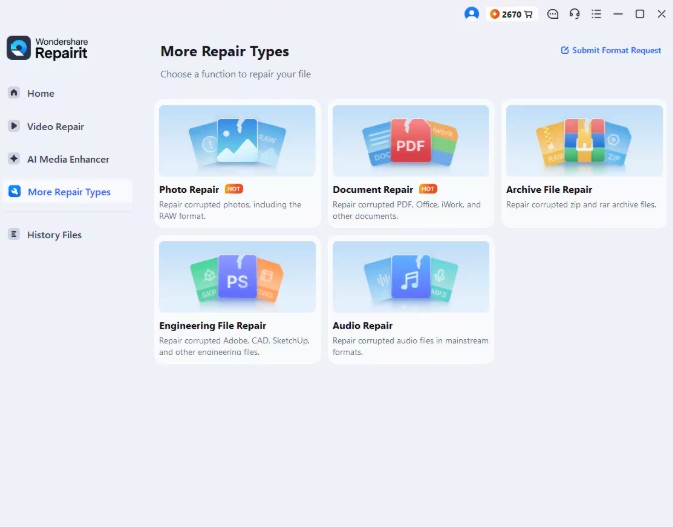
Step 2: Start repair
Start the repair process and let the tool analyze the file. This is the point where damaged previews, unreadable image structure, or visual quality issues begin to separate into recoverable and non-recoverable cases.
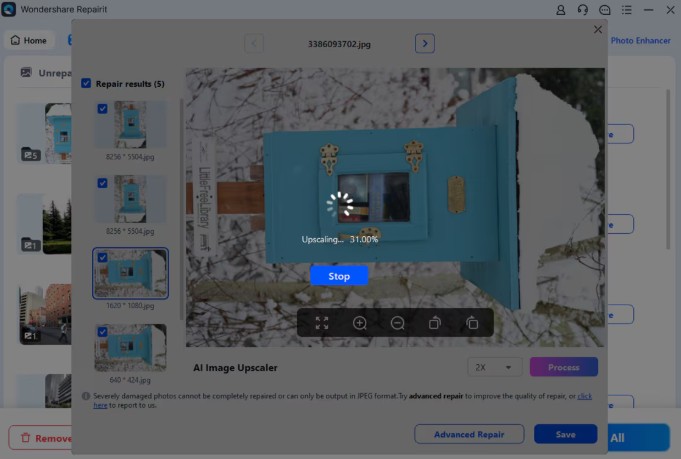
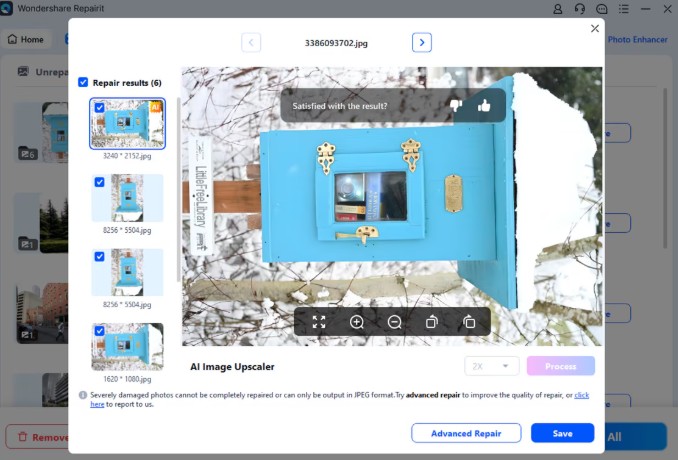
Step 3: Preview and save the repaired file
Preview the result carefully, paying attention to faces, clothing details, lighting, and background clarity. If the photo looks usable, save it as a new copy and place it in a separate folder for sharing, printing, or long-term backup.
Online vs Desktop Repair for Graduation Memories
| Need | Online repair | Desktop repair |
| Quick image fix before posting | Best fit | Useful if deeper control is needed |
| Larger files or repeated edits | Less ideal | Better fit |
| Mixed folders with important memories | Good for one-off checks | Better for organized recovery |
Final Thoughts
Graduation photos and videos are easy to underestimate until one of them fails at the wrong moment. The safer approach is to sort the damaged files, use the right recovery path for images and videos, and save repaired copies separately from the original media. That turns memory recovery into a manageable workflow instead of a rushed panic exercise.
For students, the real goal is not to make every file perfect. It is to preserve the moments that matter while there is still time to keep, print, post, or archive them properly. A simple, disciplined repair path does that better than repeated ad hoc fixes.